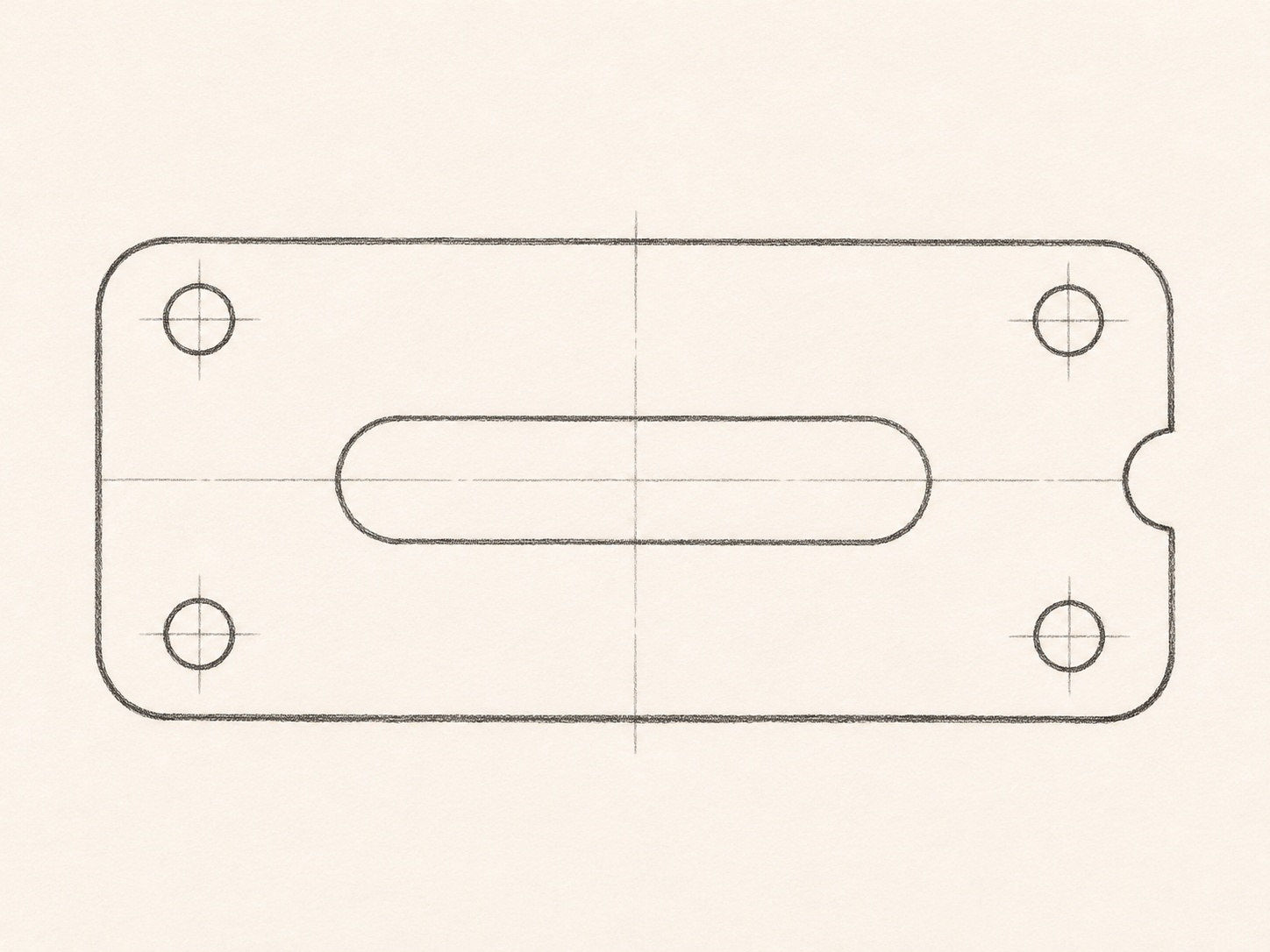
EDITABLE 2D DRAWINGS

JPG to DWG.Give your reference a working file.

Convert a JPG photo or scanned drawing into editable DWG geometry. Start with visible edges and refine the drawing in your own workspace.

See how it works

JPG / JPEG · up to 20 MB

  • 1 free guest conversion daily
  • DWG + DXF + SVG + PNG
  • Files up to 20 MB
JPG to DWG. — After
JPG to DWG. — Before
BeforeAfter

THREE SIMPLE STEPS

From JPG to DWG, then back to work.

Bring your reference, create editable geometry, and take the drawing file into your own drafting workflow.

  1. 01

    Choose a JPG or JPEG

    Upload a JPG up to 20 MB. JPG and JPEG use the same format, so either extension works here. Choose the sharpest original photo you have rather than a small copy downloaded from a message thread.

  2. 02

    Create the DWG drawing

    The JPG to DWG process interprets visible outlines as 2D drawing elements. Compare the result with your photo, paying attention to parts hidden by shadows, reflections, or other objects in the frame.

  3. 03

    Take the next step in CAD

    Download your DWG and open it in a compatible CAD editor. DXF, SVG, and a PNG preview accompany the same conversion. Use a known measurement to set the scale, then check the drawing against your JPG before making further changes.

START WITH A REAL REFERENCE

Photos with a next step.

Compare each JPG reference with its DWG outlines across buildings, components, and sketches.

A photographed building facade — After
A photographed building facade — Before
BeforeAfter

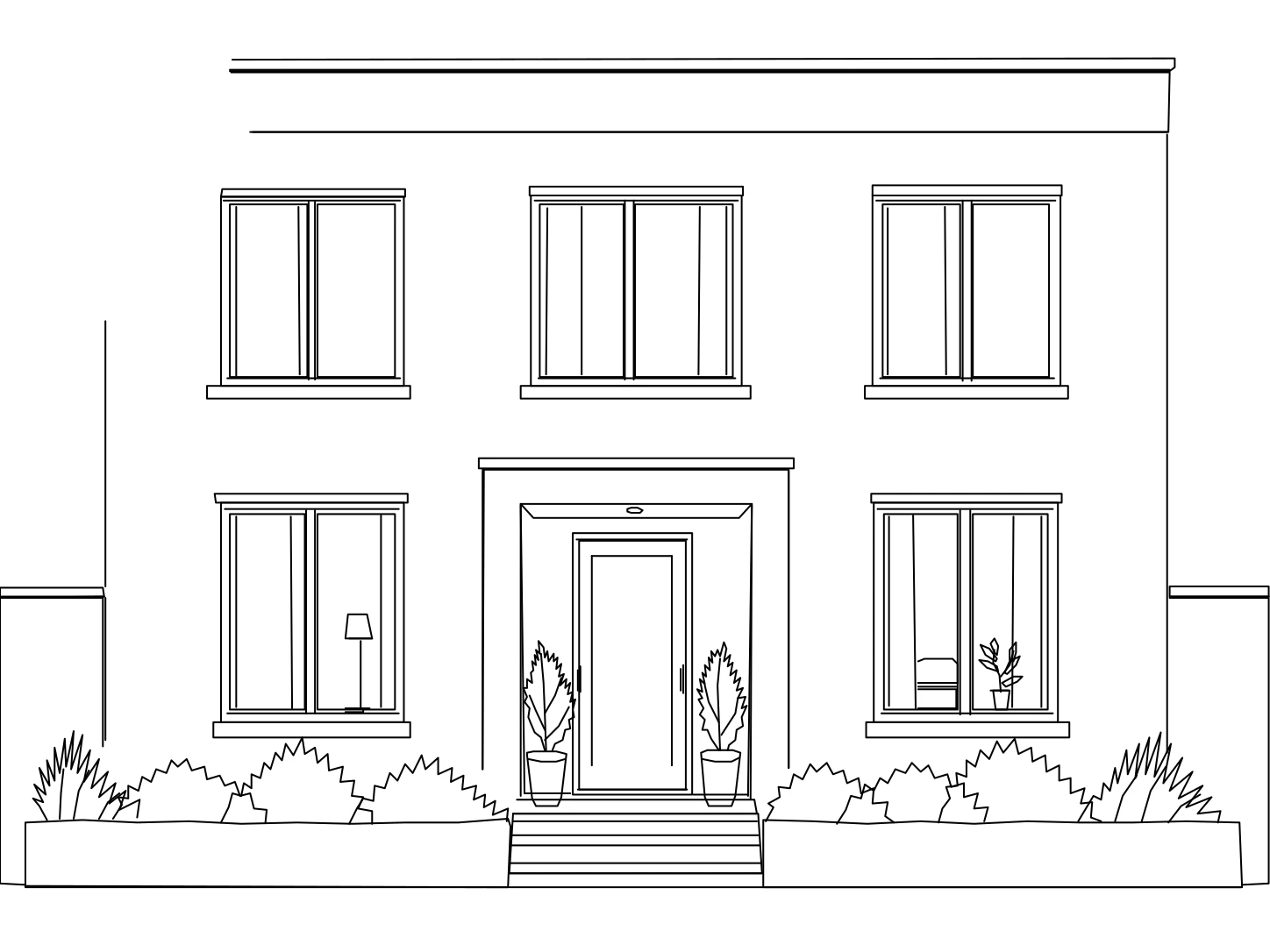
A photographed building facade

Use a JPG of a building when you need a reference for an elevation study. Open the drawing to develop window outlines, organize openings, or compare a proposed change against the visible facade.

Try a straight view with the whole subject in frame. A JPG taken from one side compresses distant features; the drawing does not establish a measured elevation from that perspective.

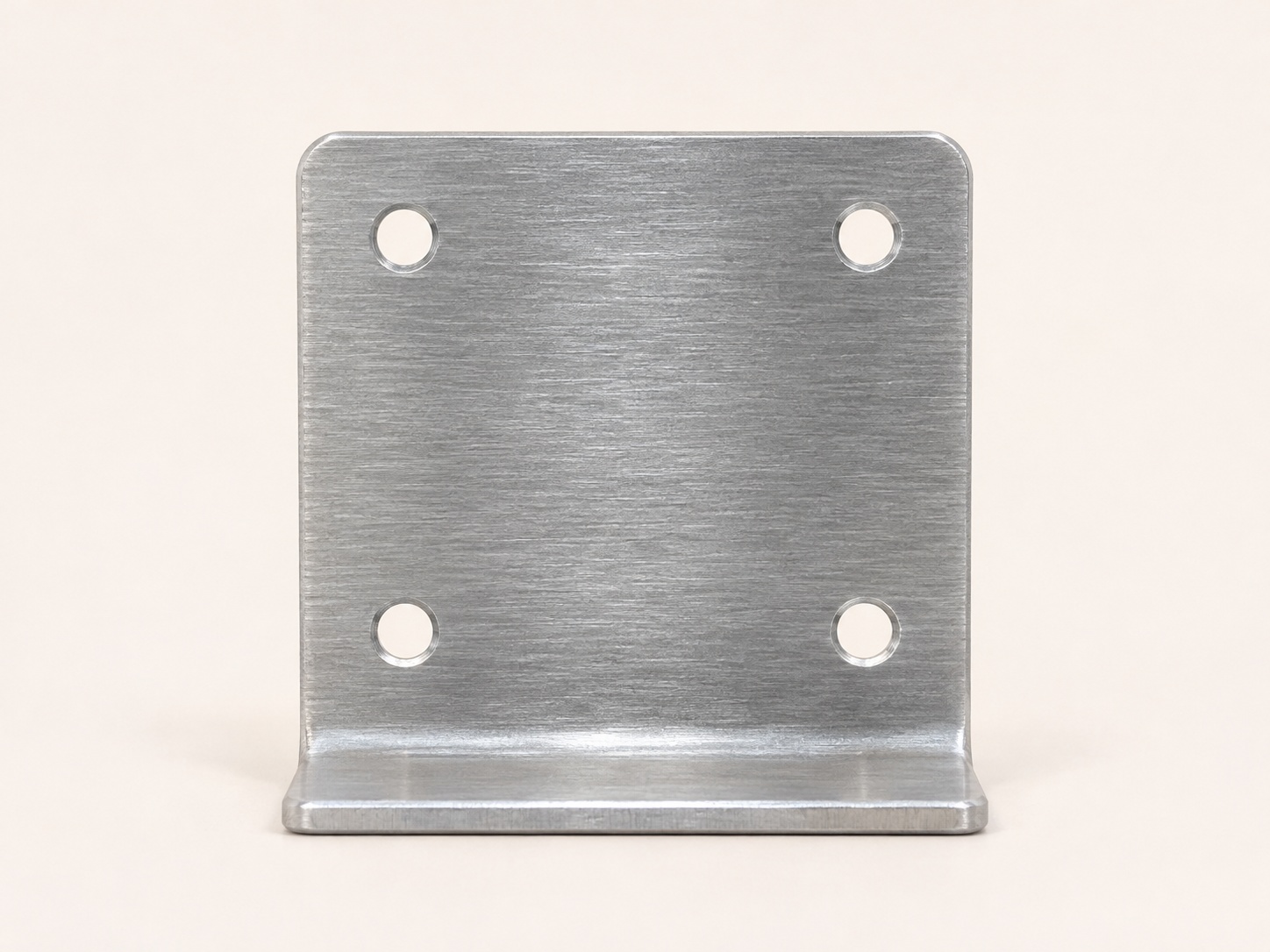
A product with a useful profile — After
A product with a useful profile — Before
BeforeAfter

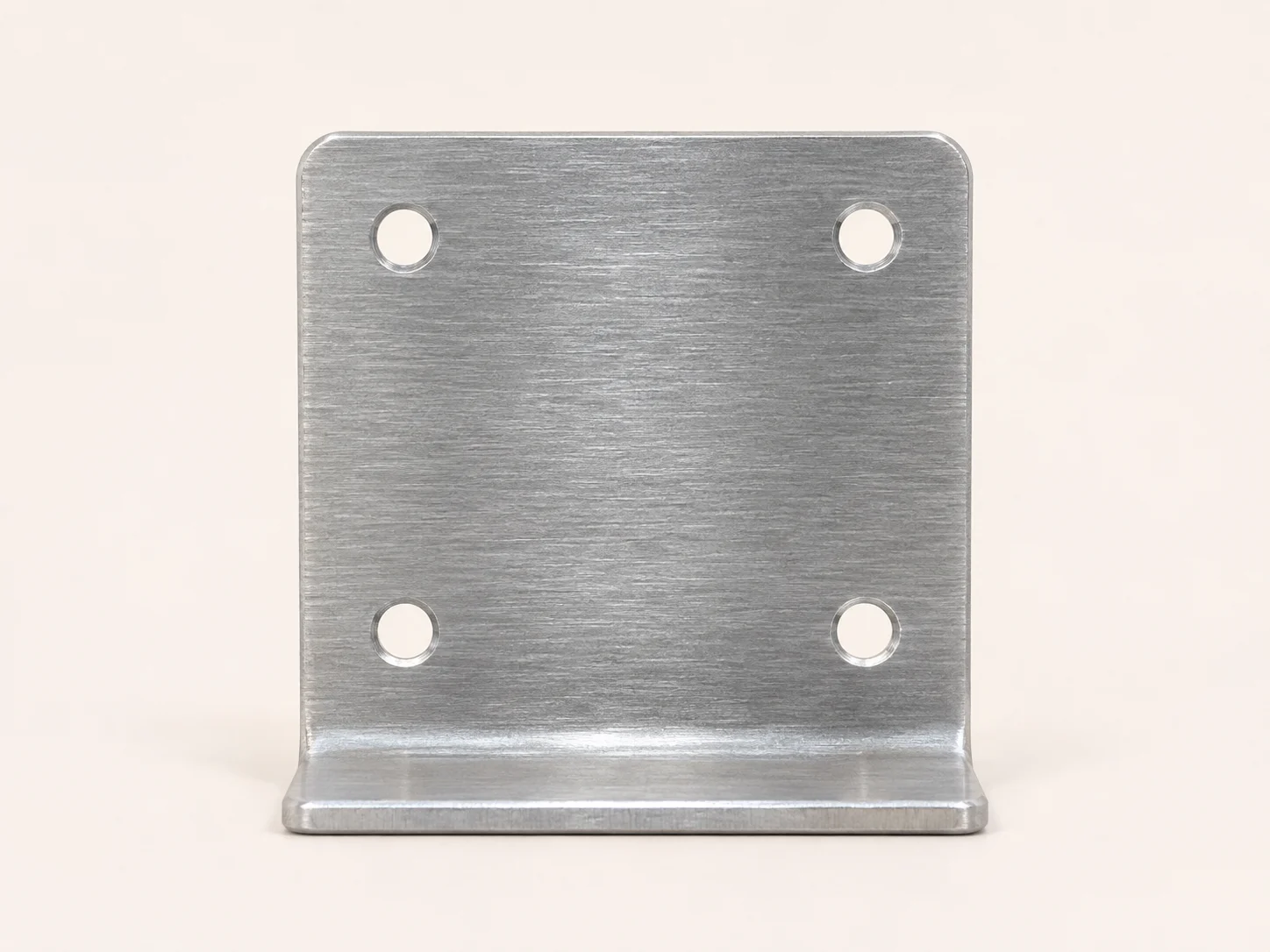
A product with a useful profile

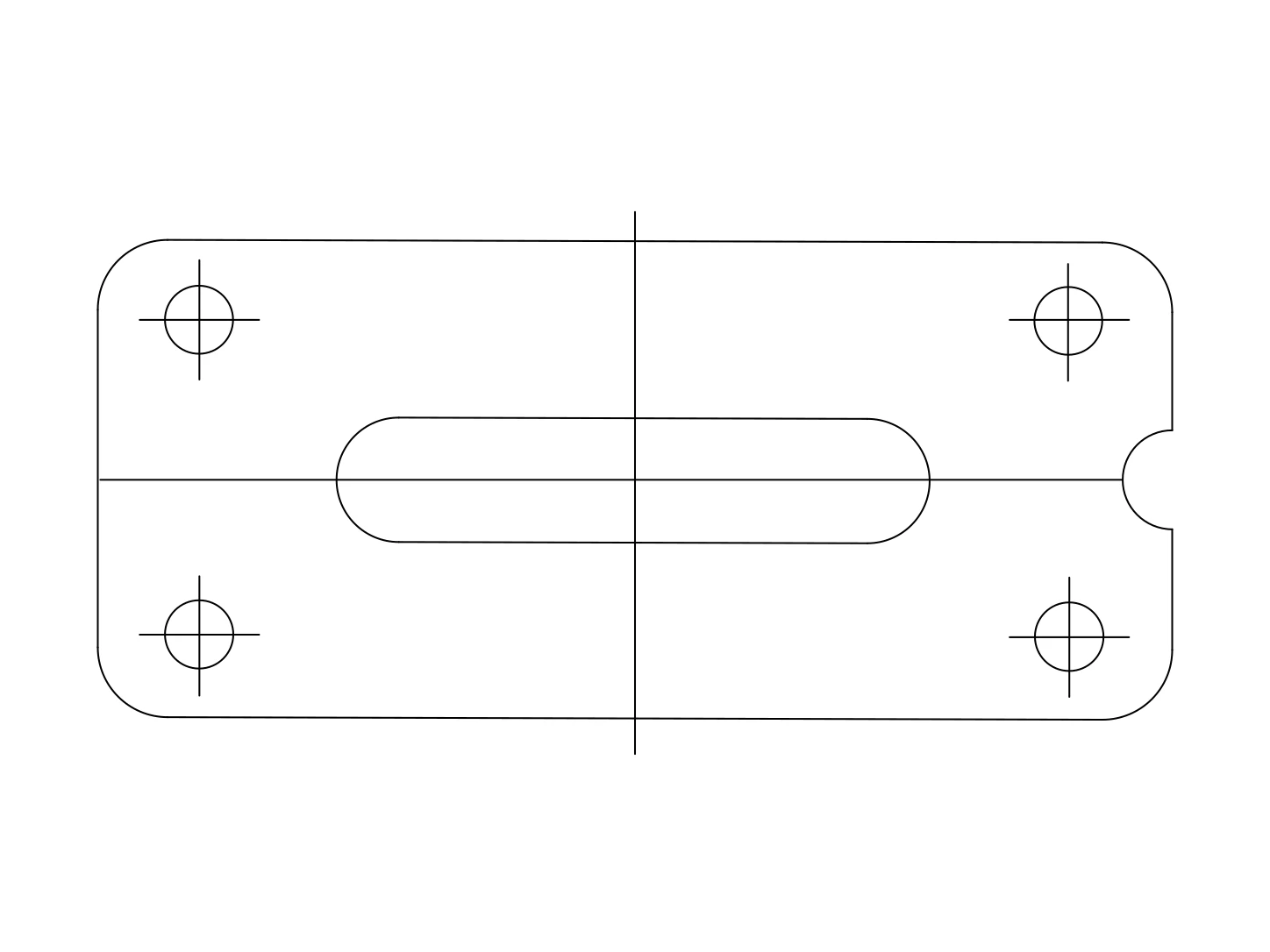
A JPG product photo can offer an outer profile and visible mounting holes when a drawing is unavailable. Use the drawing as a starting reference for documenting the part or developing another design.

Check reflective edges and recesses against the photo. Thickness, tolerances, and hidden holes need measurements or additional references, even when the visible JPG outline looks straightforward.

A sketch captured on your phone — After
A sketch captured on your phone — Before
BeforeAfter

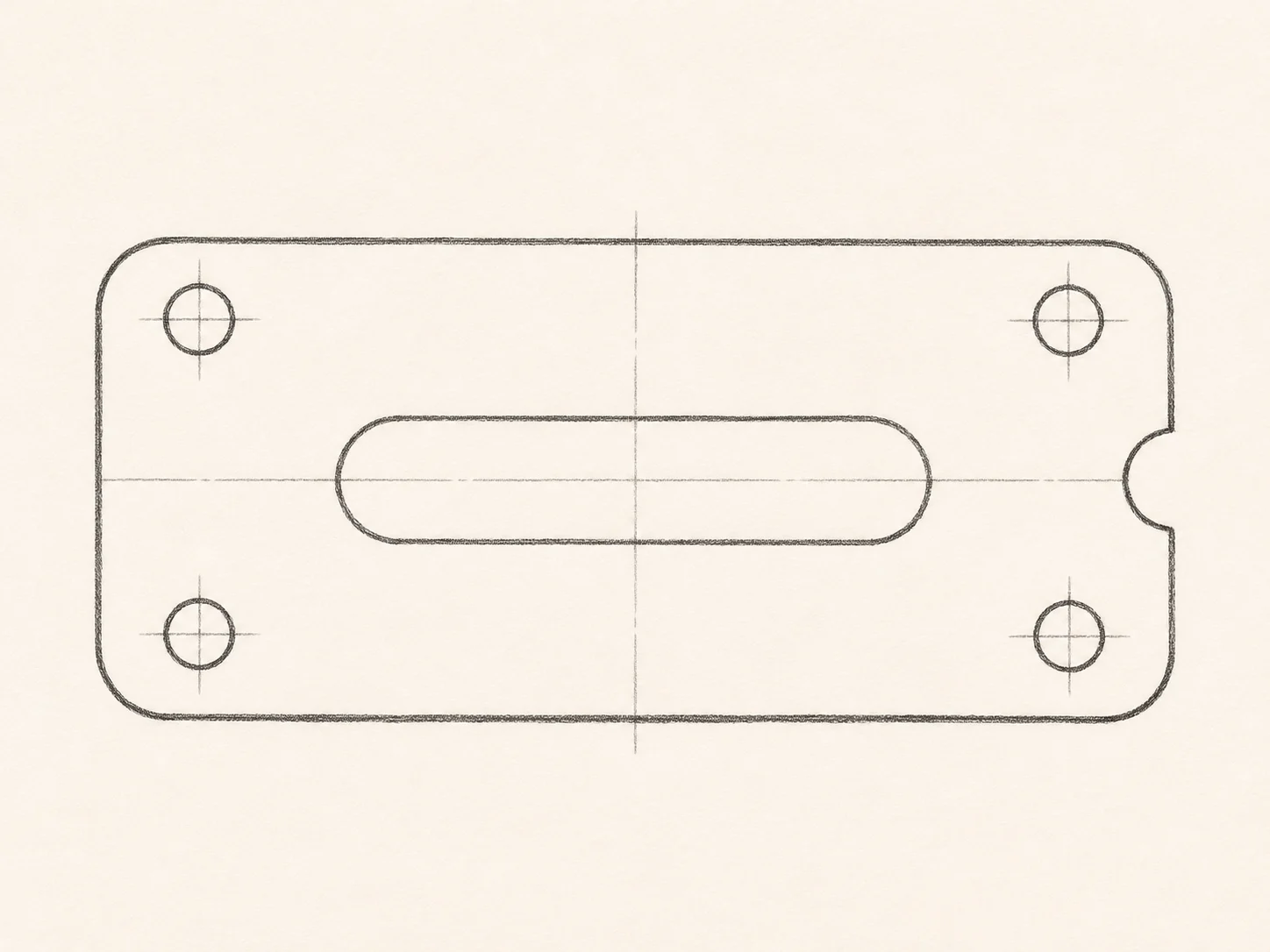
A sketch captured on your phone

A clear JPG of a notebook sketch can help move an idea into CAD before you lose its context. Keep the page flat, include the complete outline, and avoid a shadow across the drawing.

After opening the drawing, check the sketch details you care about most. Use written measurements as references to verify independently, rather than assuming the JPG preserves the original scale.

A DRAWING YOU CAN CONTINUE

What to expect from JPG to DWG.

Your JPG supplies the reference. The DWG supplies editable geometry, ready for you to review in the application you use.

Selectable elements, not a placed picture

A JPG displays the appearance of a drawing. Placing that JPG inside a CAD document leaves you with pixels to look at. The purpose of JPG to DWG is to give those visible edges an editable form.

Open the DWG to select individual lines and contours. Move an opening, adjust a profile, or redraw a junction as your project develops. Keep the original JPG available to compare details that may need attention.

DWG and DXF, from one conversion

Choose DWG when it is the file type your drafting workflow expects. A DXF copy is also available, so you can test another import path without asking the service to interpret your JPG again.

The DWG contains the same generated 2D geometry as the other exports. Converting to DWG does not restore layers, dimensions, or constraints that were lost when the original JPG was created.

Set the scale in your project

A JPG can show a clear shape without telling you its physical size. Use a known distance to scale the DWG, then check other important lengths before continuing to detailed work.

Use a known measurement to check the drawing's scale and dimensions in your project.

Check curves and lettering in context

Inspect the DWG at the size you intend to use it. Small gaps, narrow strokes, and faint edges in the JPG can be difficult to distinguish, even when the overall subject is recognizable.

Text that is legible in the JPG can become editable lettering. Font appearance may vary between applications, so check labels alongside the DWG linework rather than assuming they will match every detail of the source.

TEST THE FORMAT FIRST

Try the converted DWG.

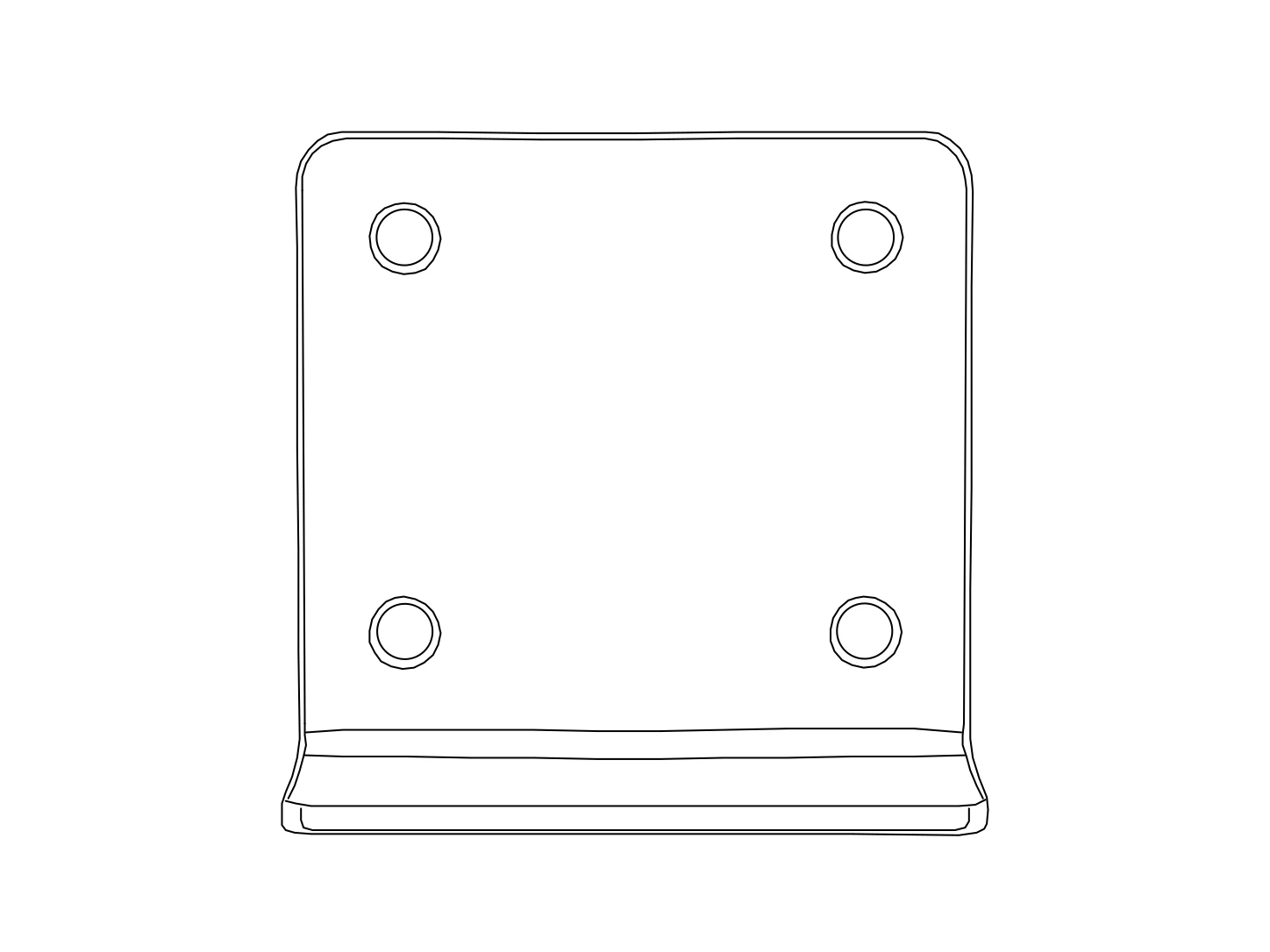
Open this converted DWG in your CAD application. Select an outline, adjust a curve, or move a segment to see how the drawing fits your workflow.

Keep the JPG beside the DWG while checking small details. Use a known measurement to set the scale before adding the drawing to your project.

Download sample DWG
A product with a useful profile converted linework

Select a contour

Open the DWG and select its outer profile. Confirm that you can work with geometry rather than a JPG placed behind the drawing as a visual reference.

Change a feature

Try adjusting a circle or moving an element in the DWG. Consider which visible features of your JPG would need similar cleanup when developing the design.

Establish the scale

The sample DWG is unitless. Choose appropriate import units and use a known measurement when sizing the drawing created from your JPG. Photo pixels are not physical dimensions.

BEFORE YOUR FIRST CONVERSION

JPG to DWG questions

Formats, downloads, and what to expect from your drawing.

YOUR REFERENCE. YOUR NEXT DRAWING.

Ready to turn your JPG into DWG?

Start with one source you know well. Open the result, make an edit, and see how it fits your work.

Guests: 1 free conversion daily. Eligible new accounts: 3 initial conversions.