EDITABLE 2D DRAWINGS

PNG to DXF.Give clear outlines a new use.

Convert a PNG into editable DXF geometry. Bring screenshots, scanned plans, and outline artwork into your CAD workflow.

See how it works

PNG · up to 20 MB

  • 1 free guest conversion daily
  • DXF + SVG + PNG
  • Files up to 20 MB
PNG to DXF. — After
PNG to DXF. — Before
BeforeAfter

THREE SIMPLE STEPS

From PNG to DXF, then back to work.

Bring your reference, create editable geometry, and take the DXF file into your own drafting workflow.

  1. 01

    Pick your PNG source

    Upload a PNG up to 20 MB. Start with the original PNG when possible, rather than a screenshot of a screenshot. Keep one drawing or motif in view so its intended outline is easy to identify.

  2. 02

    Convert PNG to DXF

    Create a 2D interpretation of the visible PNG content. Compare the result with the source and note small gaps, faint marks, or details you want to adjust before taking the DXF into another project.

  3. 03

    Continue in your editor

    Download DXF for drafting and geometry cleanup. SVG and a PNG preview are also included. Open the DXF in your preferred application to make a revision or set the scale using a known measurement.

START WITH A REAL REFERENCE

From pixels to editable outlines.

See how clear PNG outlines become editable DXF geometry across plans, artwork, and decorative patterns.

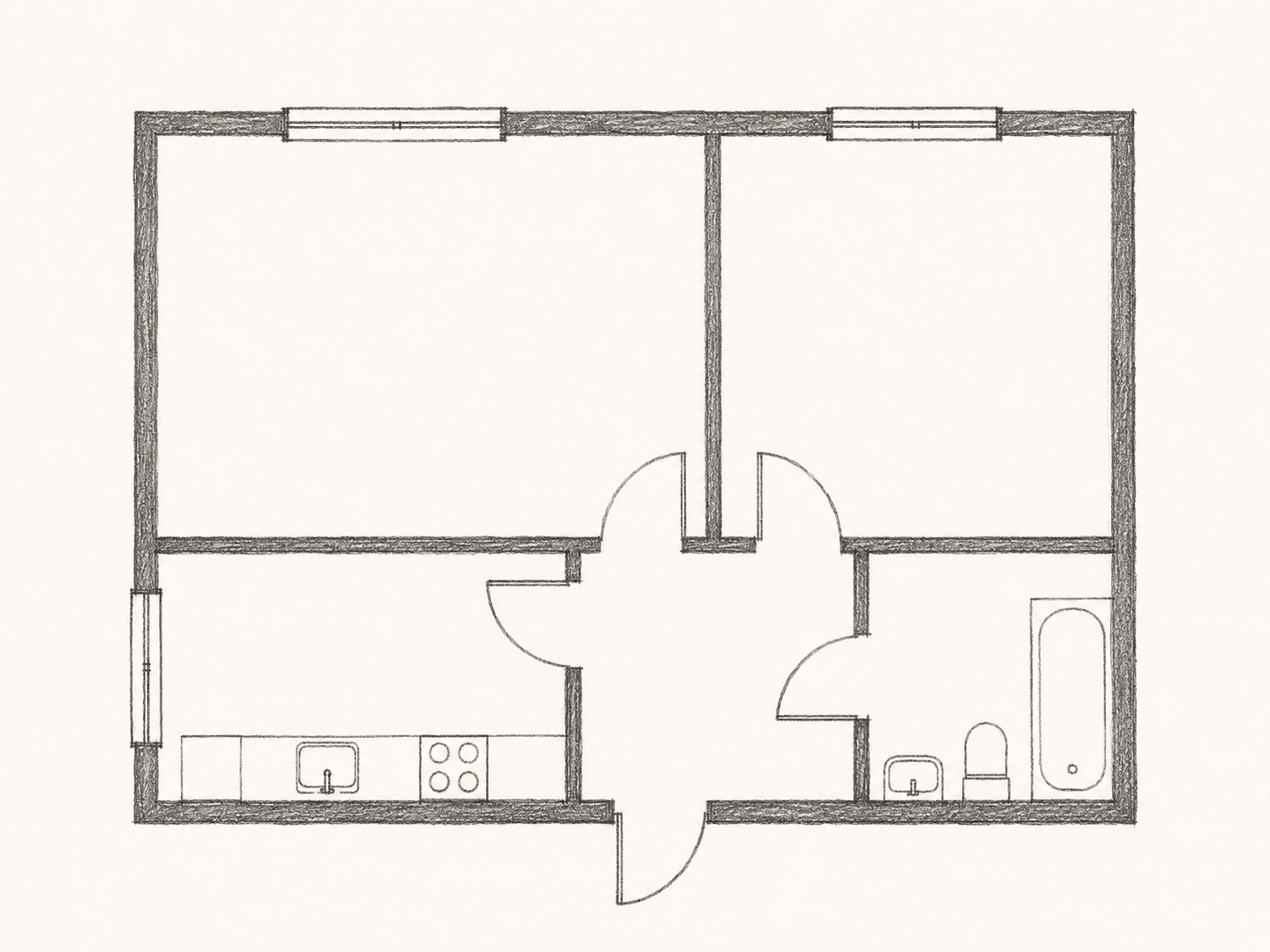
A scanned room layout — After
A scanned room layout — Before
BeforeAfter

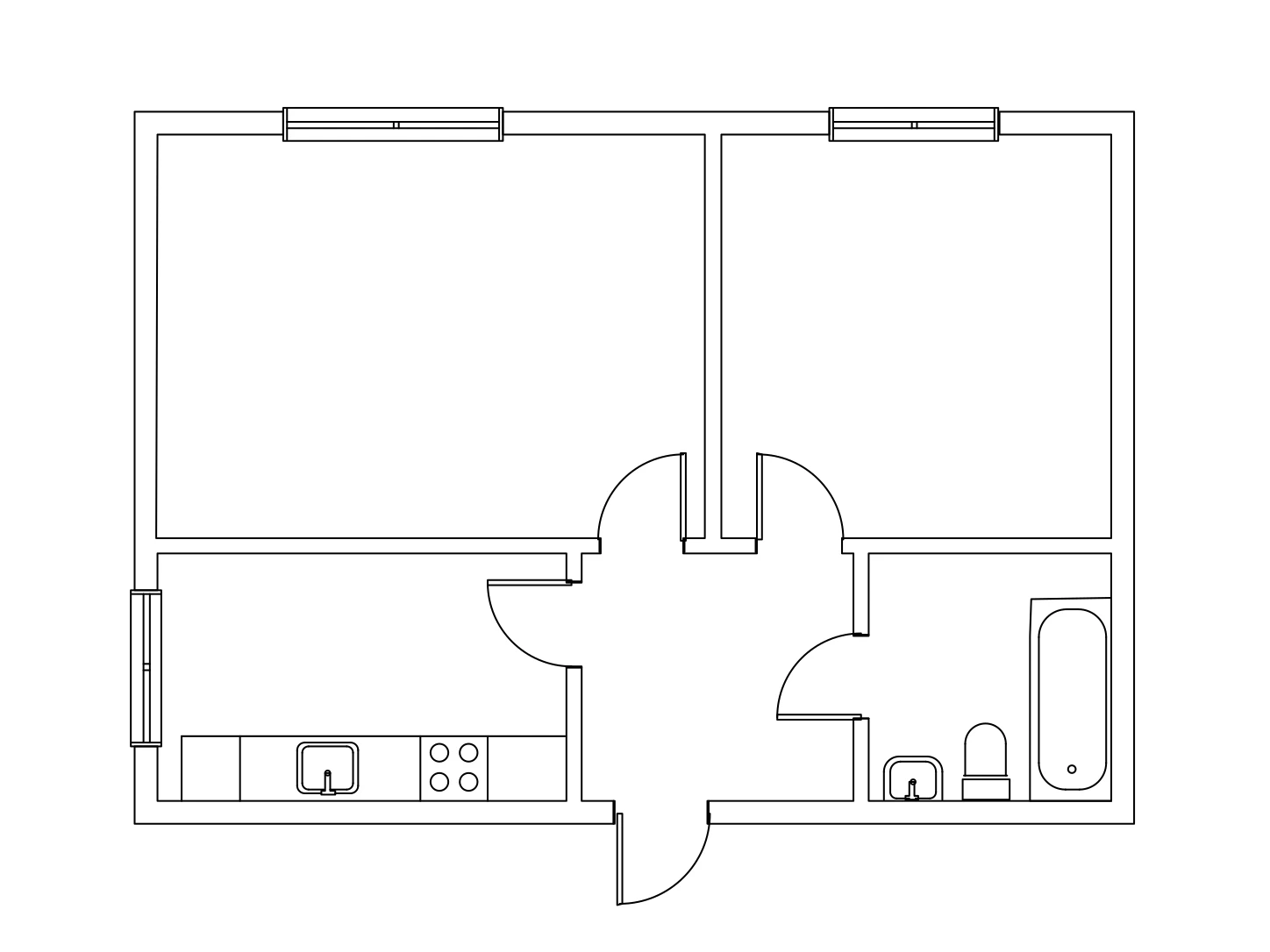
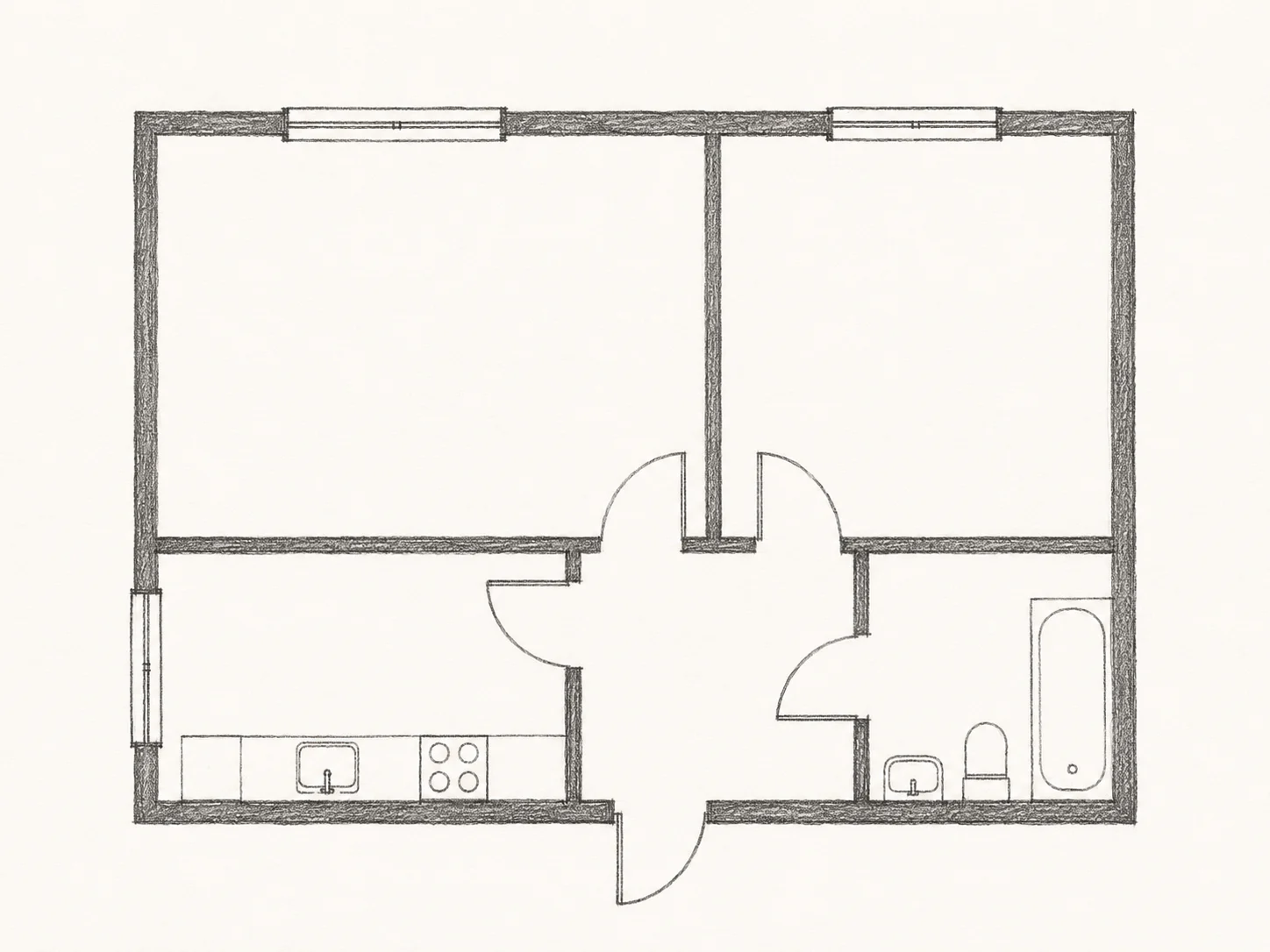
A scanned room layout

Use a PNG scan when you need to work from a printed room plan. DXF gives you a starting layout for sketching furniture positions, discussing a partition, or rebuilding a lost drawing.

Keep the PNG as a reference while you edit. Check door swings and wall junctions in the DXF, then add dimensions from your measurements rather than from the scanned page size.

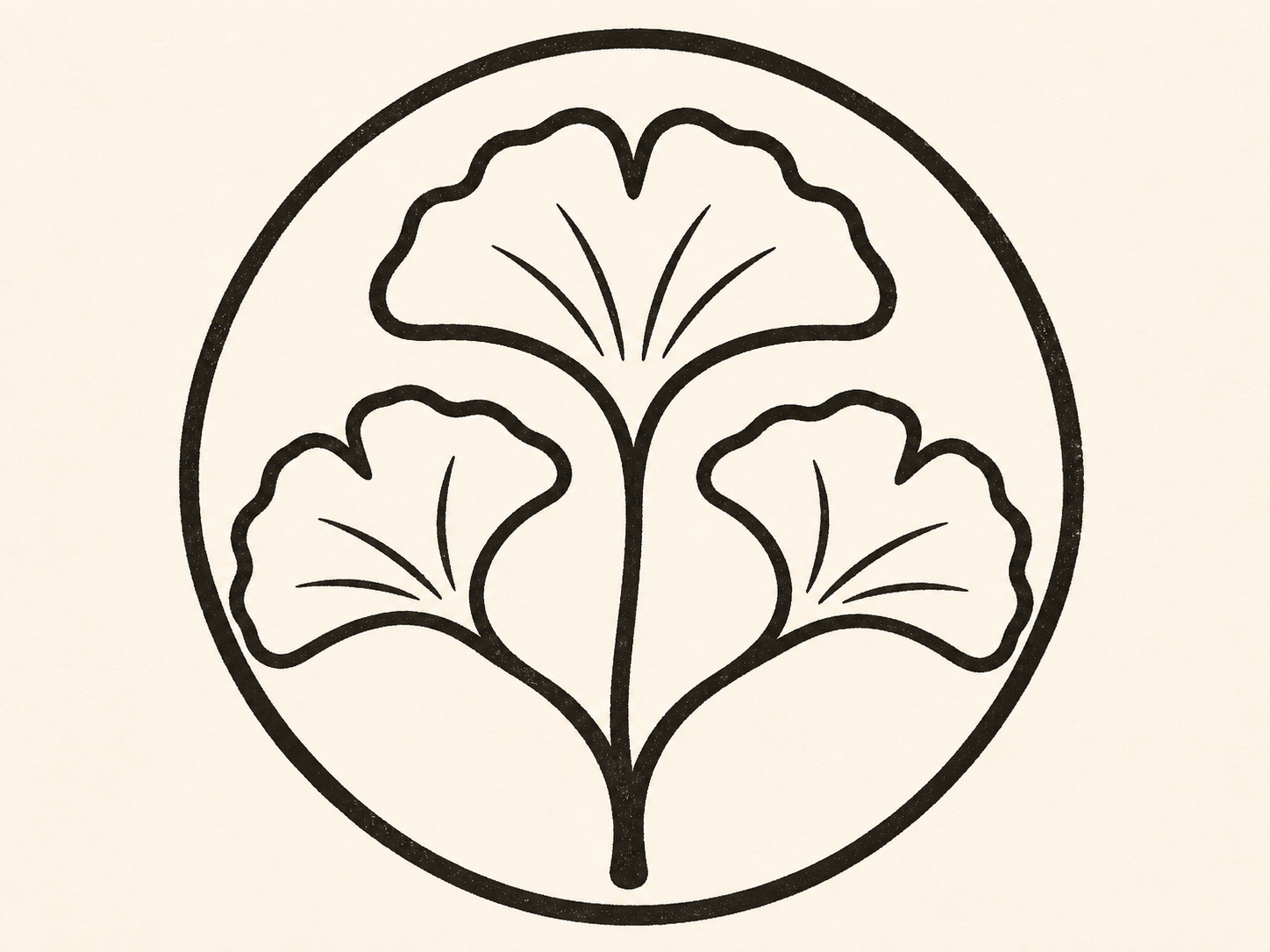
An outline for graphic work — After
An outline for graphic work — Before
BeforeAfter

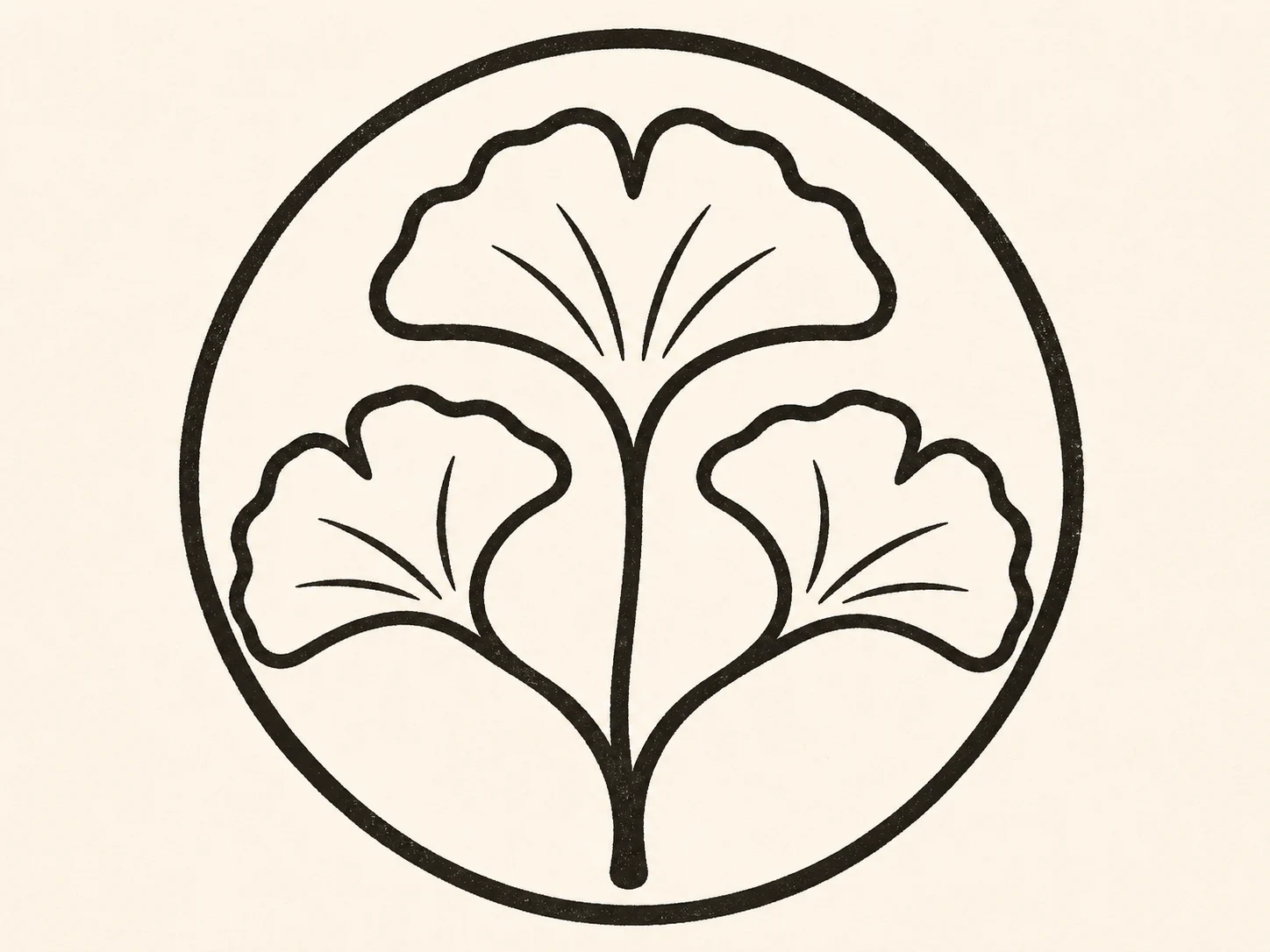
An outline for graphic work

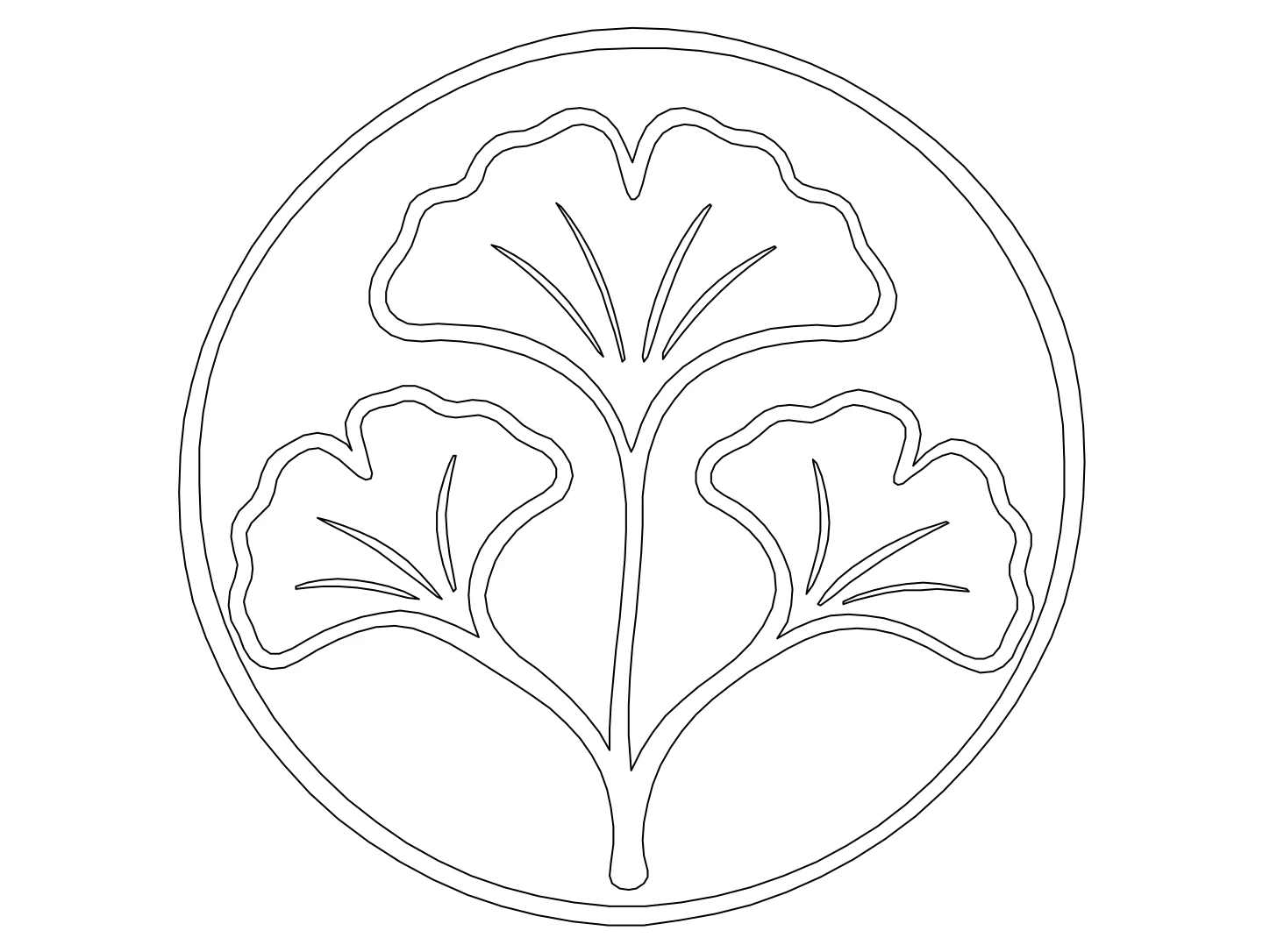
A simple PNG emblem provides a focused source for editable curves. Take the DXF into your drawing workflow, or choose SVG when adjusting the graphic in a vector editor makes more sense.

Decide which outlines matter before preparing the design for another process. A thick stroke in the PNG has two visible edges; inspect how those edges were interpreted in the DXF.

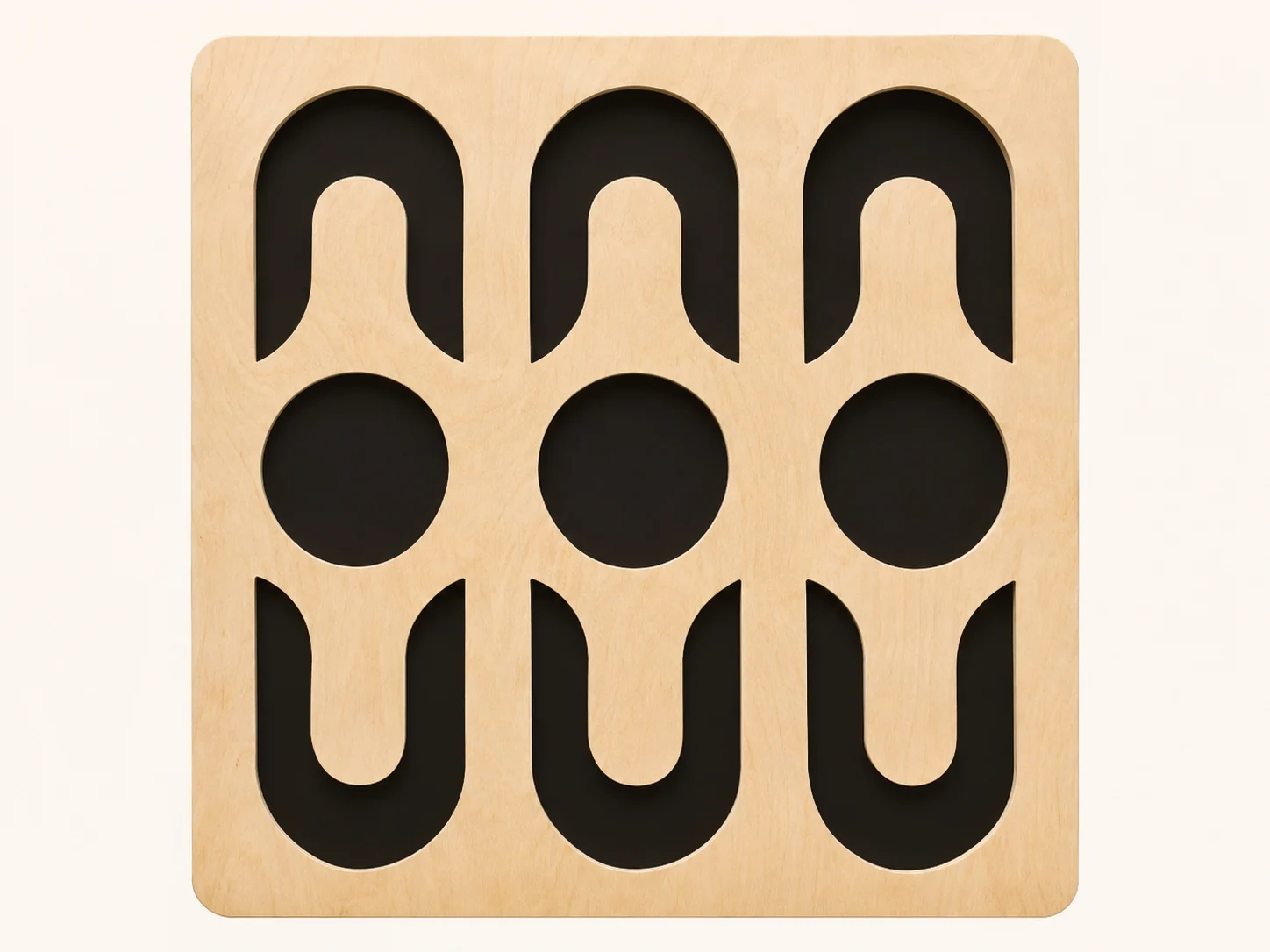
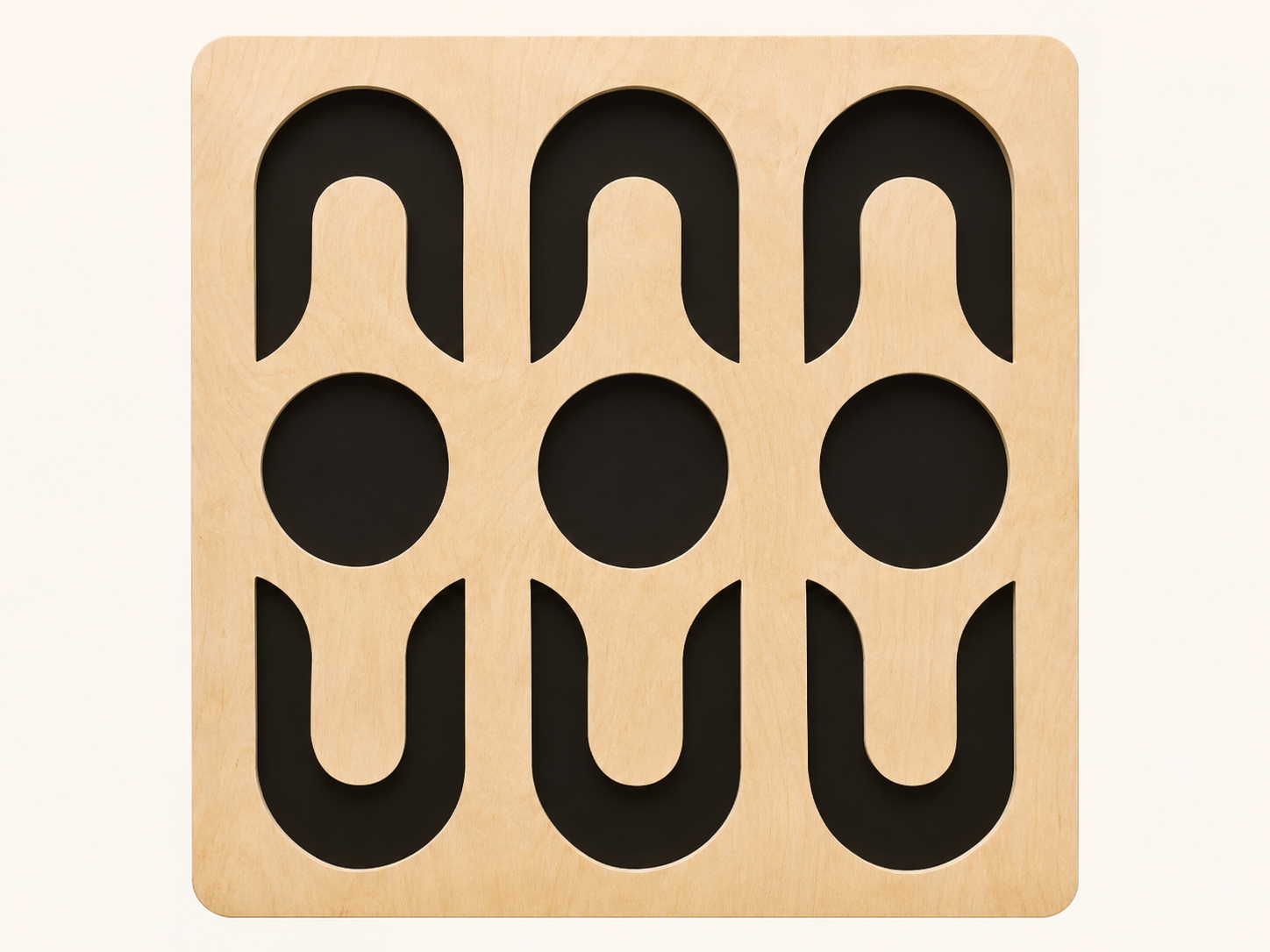
A repeating decorative pattern — After
A repeating decorative pattern — Before
BeforeAfter

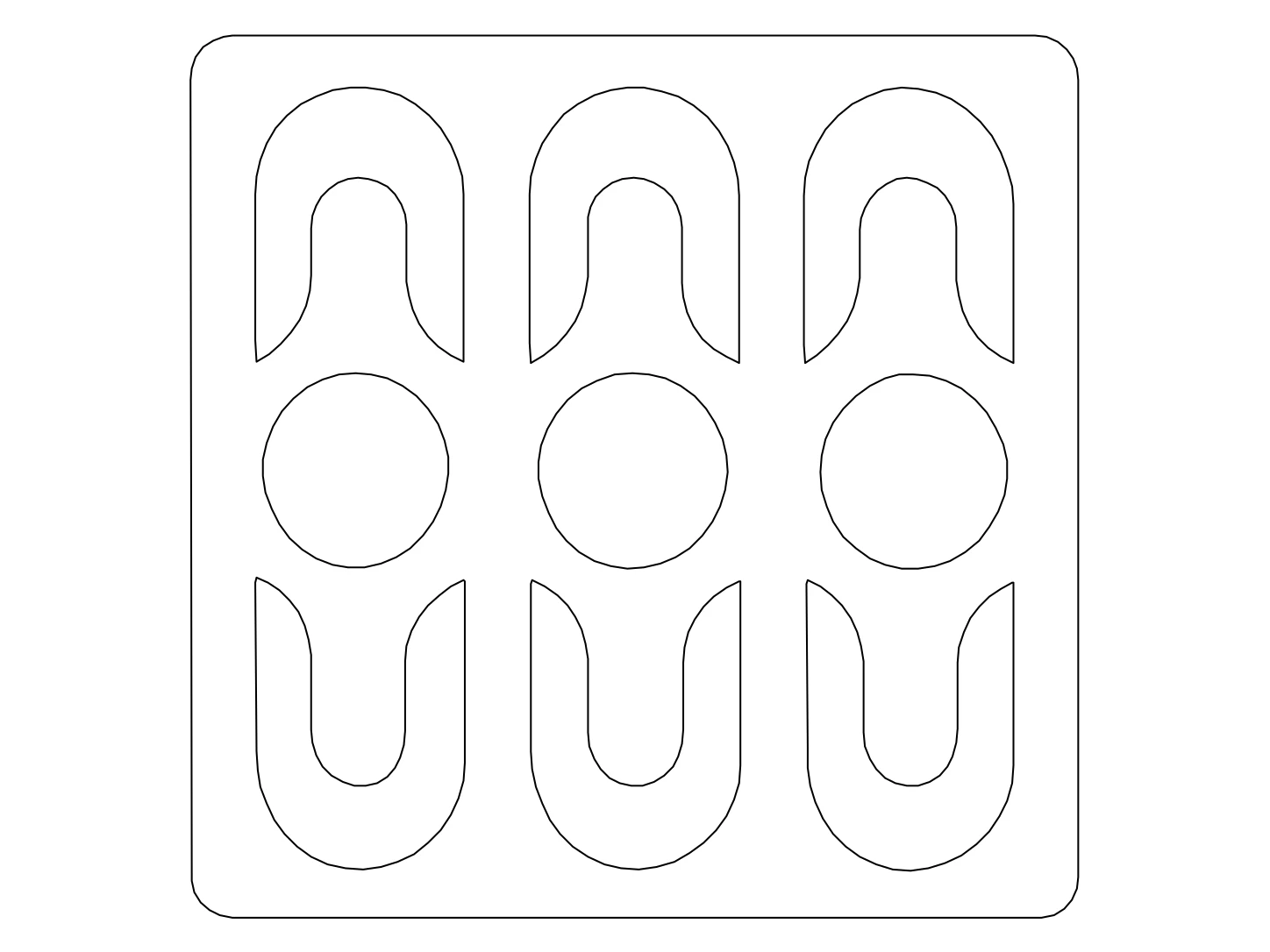
A repeating decorative pattern

A PNG view of a decorative panel can provide a reference for a pattern study. Work from its visible arches, openings, and outer boundary when developing a related layout in DXF.

A source photo saved as PNG still contains shadows and surface texture. Review the DXF contours before any cutting preparation, and specify material thickness and tool settings separately.

A CLOSER LOOK AT PNG

Keep the useful detail. Lose the guesswork.

A PNG can be sharp, transparent, or a screenshot of something much less clear. The source matters more than the extension.

A PNG can preserve a clean edge

PNG uses lossless compression, making it useful for saved screenshots and line artwork. When the original contains clear boundaries, a PNG can keep those pixels intact through repeated saves.

That does not add detail to the subject. Enlarging a small PNG, or saving a blurry photograph as PNG, does not restore the missing outline that a DXF drawing would need.

Transparency is part of the source

A PNG may contain a transparent background instead of a white page. Check the PNG against both light and dark backgrounds to see whether important strokes remain visible.

Do not assume transparency will become a DXF boundary or a special CAD layer. The conversion interprets visible content; inspect the exported geometry to decide whether it matches the outline you intended.

Screenshots contain more than drawings

A PNG screenshot can include selection handles, page shadows, toolbars, and interface labels. Crop those out so the source presents the drawing instead of the surrounding application.

For a floor plan, use the PNG with the clearest room edges. A closer view of one useful area may be a better starting point for DXF than an entire screen of tiny details.

Choose a contour, not a cutting promise

A PNG to DXF result can help you develop a sign or decorative motif. It does not automatically establish closed toolpaths, material allowances, or the settings required by a machine.

Inspect the DXF for duplicate edges and small gaps. A plain PNG outline is easier to interpret than a shaded design, but the final preparation still belongs in your CAD or fabrication software.

TEST THE FORMAT FIRST

Try the converted DXF.

Open this converted DXF in your CAD application. Select an outline, adjust a curve, or move a segment to see how the drawing fits your workflow.

Keep the PNG beside the DXF while checking small details. Use a known measurement to set the scale before adding the drawing to your project.

Download sample DXF
An outline for graphic work converted linework

Inspect individual elements

Select a line or circle in the DXF. Check how your application exposes it for editing and compare that experience with placing a flat PNG on the canvas.

Try changing a detail

Move one element or adjust a radius in the sample. Think about which parts of your PNG design would need that kind of editing after conversion.

Set units deliberately

This DXF sample is unitless. Choose import units in your application; use a known reference dimension to scale a future drawing made from your PNG.

BEFORE YOUR FIRST CONVERSION

PNG to DXF questions

Formats, downloads, and what to expect from your drawing.

YOUR REFERENCE. YOUR NEXT DRAWING.

Ready to turn your PNG into DXF?

Start with one source you know well. Open the result, make an edit, and see how it fits your work.

Guests: 1 free conversion daily. Eligible new accounts: 3 initial conversions.